Kitchen Management System

Increase order accuracy and drive efficiency by sending orders directly from the POS terminal to the kitchen. 

Paperless Kitchen

Bump screen, Paperless kitchen, Kitchen Display System (KDS) or a Kitchen Management System (KMS). Regardless of what you call it, this smart system will smooth complex kitchen workflows, getting the right information to the right person, at the right time.

Paperless kitchen speeds up multi-stage production, passing orders from one station to the next and, if you have more than one station completing the same process, it’s even smart enough to automatically balance the load of orders between stations and never lose a docket again.

A Comprehensive Kitchen Display System and Management System

Kitchen display systems are an essential element of any hospitality business. If you’re looking to deliver orders quickly, accurately, and efficiently while removing your reliance on paper slips, ask the Redcat team about a KDS system for restaurants, cafes, franchises, QSR venues, and more.

Kitchen display and management systems create a seamless workflow, even in the busiest, most complex kitchen environments.

With the Redcat KDS, you can automatically pass orders from the Point of Sale system to the correct stations for processing. The individual items in each order can be displayed separately at different stations, so each team member only sees what they need to prepare. With the right information being delivered to the right person in real-time, you will be able to streamline and supercharge order processing.

Automate your workflow, empower your employees, and drive customer satisfaction. Enquire with Redcat for the best KDS system for restaurants and other hospitality venues.
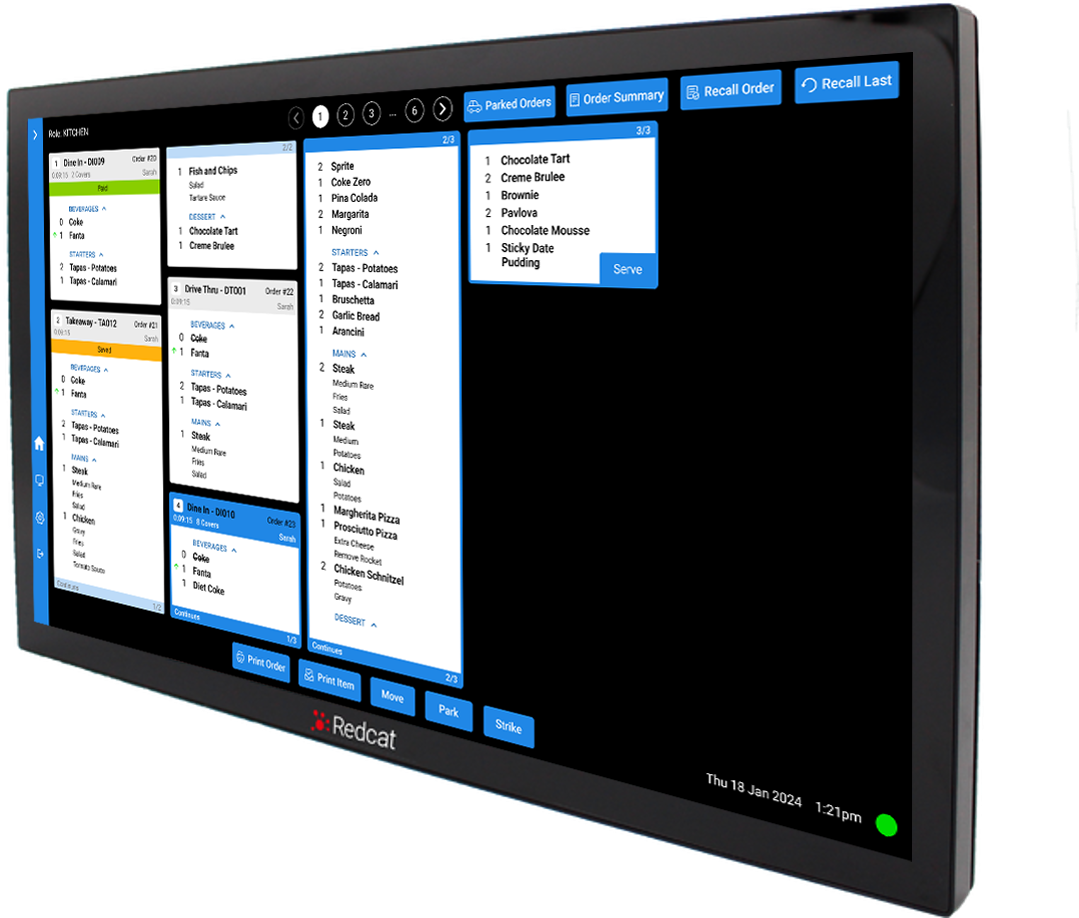
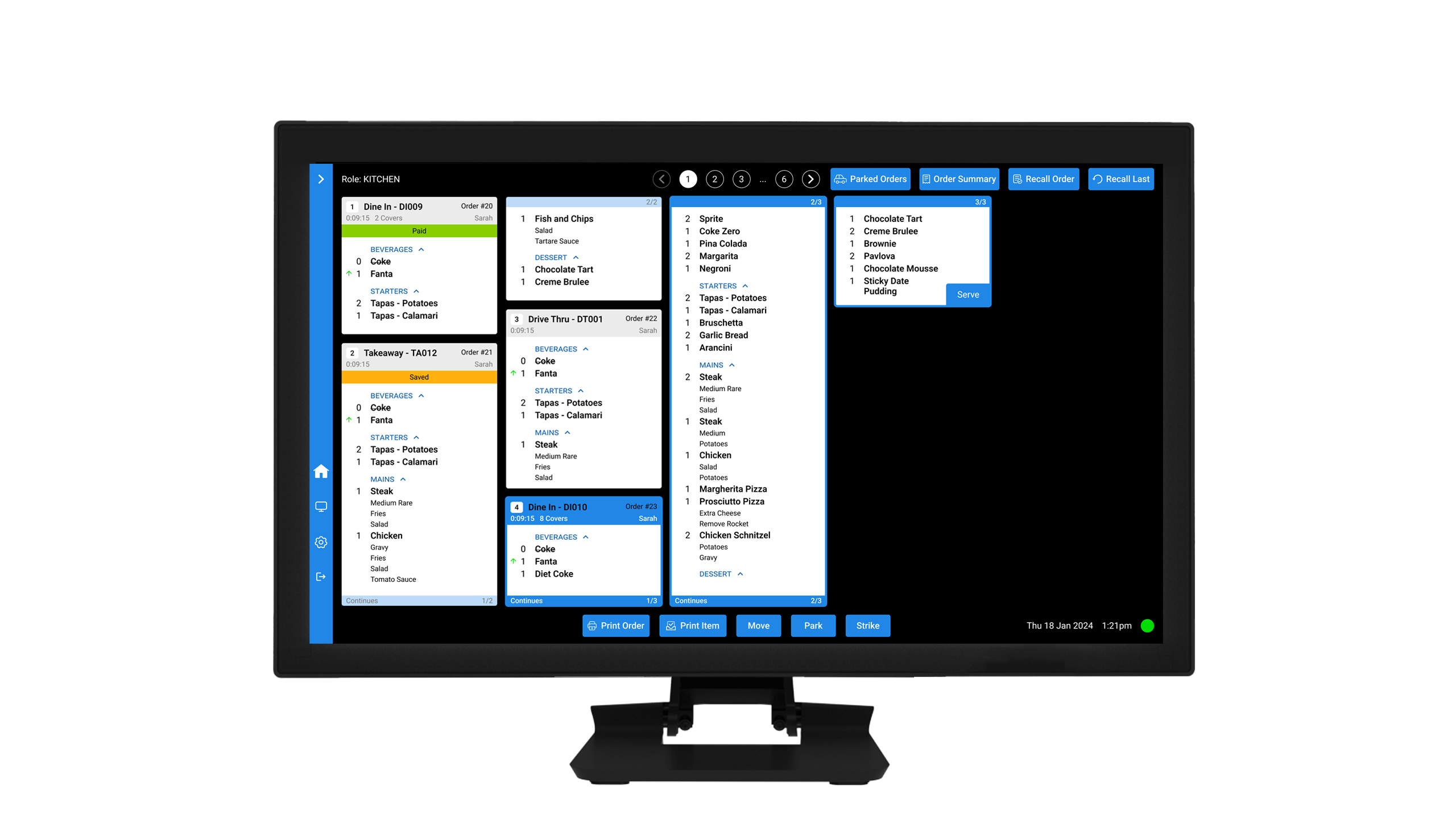
RCP185-KDS-wall-mounted

Improve operational efficiency

  • Eliminate mistakes through removing reliance on slips of paper, ensuring that the correct people see the correct order at the correct time

  • Load balancing – intelligence in pushing the order to the person that can prepare it in the fastest time

  • Workflows can be set and changed on the fly

  • Sound alerts

  • Can show ‘Production Only’ ingredients for cooking

  • Network status warning

  • Pause monitors for low staff/sales periods

  • Status box for feedback on the current workload and effort
RCP185-KDS-bench-stand

Platform Freedom & Total Control

Your technology should be as flexible as your menu. Our new platform-agnostic architecture gives you total hardware independence:

  • Windows or Android: Run your KDS front-end on the hardware that suits your budget and space.

  • Self-Recovering Tech: In the event of hardware failure, the system is designed to self-recover. Spin up a new instance on any device instantly, without waiting for a support call.

  • Central Configuration: Manage your entire network from one hub. Set up your device configuration centrally and deploy it to your fleet in seconds.
 
KDS 3

Precision That Protects Your Bottom Line

User experience isn't just about looks—it's about accuracy and actionable data. We’ve built in safeguards to keep your kitchen on track:

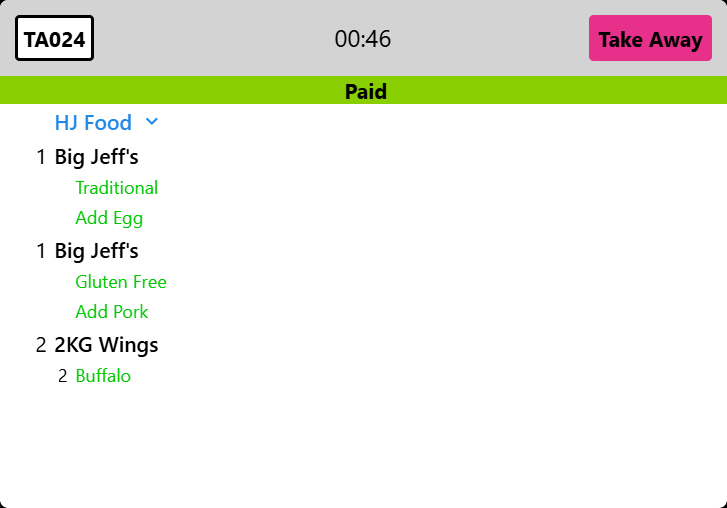
  • Smart Modifiers: Different colors are available for item modifications, drastically reducing errors and expensive aggregator refunds.

  • Live Change Indicators: See immediate alerts for items that have been modified at the POS after the order has been saved or paid.

  • Delivery Countdown Timers: Easily see at a glance exactly when orders are due to be picked up to keep drivers moving.

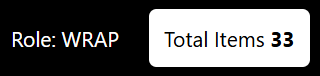
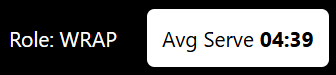
  • Performance Metrics: Track your kitchen's key performance indicators at a glance to identify bottlenecks before they happen.

  • Easy Conversion: Transitioning is a breeze—your existing Back of House (BOH) settings carry over seamlessly.
KDS 3
KDS 6
KDS 7

More functionality to give you greater control


Spy Mode + Serve Mode


Enabling Spy Mode with the addition of + Serve Mode enables the user to effectively double (triple or quadruple) the number of order windows visible AND retain the serve function. It is useful when a large monitor is available with enough real estate to reasonably display multiple KMS windows.

Two (or more) instances of a KMS will be opened, situated on the monitor and assigned to the same role. The second and subsequent instances will be tagged with Spy Mode AND + Serve Mode.

The instances will now replicate each other (show the same orders rather than load balance) and both will be reactive to their ‘serve’ buttons. On the second and subsequent instances, use the Next Page button to display order boxes 9 through 16 (17 through 24 etc). In this way number of order windows have effectively been increased.


Order Ingredient Filtering

Some details are included in orders and displayed by default which users may choose to exclude if desired.

If you do not wish to include details which would normally display in the footer of online orders, exclude these using the Hide web order details (footer) setting.

Similarly, if you do not wish item grouped by class, exclude the class headings using the Exclude class headers setting.

Note: these changes take effect immediately and any active order windows will be updated.


Sale Type Colours and 'Table' Labels

To set the “table” label for a sale type

  • Select the sale type which you wish to change

  • Click the Set “Table” Label button. This will display the “Table” Label by Sale Type form.

  • Select the desired colour and then click OK

Note this setting works in conjunction with the Display table numbers and Hide “Table” label settings.
For example, if you want to hide the “Table” label for all sale types except Dine In you could:


  • Turn ON Display table numbers

  • Turn OFF Hide “Table” label (default)

  • Then select the Dine In sale type and use the Set “Table” label button

  • Choose Show

  • Set the ‘Table’ label for remaining sale types to Hide.

The ‘Table’ label will then only be displayed for the Dine In sale type.


Close and reopen the application on each kitchen display for new Sale Type Colours and/or Table Label settings to be applied.

Print on Demand

If you wish to emulate the POS setting ‘split production print jobs’ when sending the order/item(s) to the printer ensure the Print Individual Items setting is turned on. This will print one docket for each individual item (instructions will print with parent item). The order header details will print on each docket and each will include the #/total # (1/3, 2/3, 3/3 etc ) so that all items of the same order can be easily recognised.


Auto-print New Job

If you need new orders to automatically print when received, this can be achieved by assigning a printer from the list in the Auto-print new job section.

If you wish to emulate the POS setting ‘split production print jobs’ when sending the order/item(s) to the printer ensure the Print Individual Items setting is turned on. This will print one docket for each individual item (instructions will print with parent item). The order header details will print on each docket and each will include the #/total # (1/3, 2/3, 3/3 etc ) so that all items of the same order can be easily recognised.

This is useful if a docket is required to accompany each order, or a sticky label required to affix to items.


Please note: Zebra Label printers are now supported by KMS and replicate the POS dockets. That is, limited data is available per label and any excess lines or instructions will pass to the next label.

Other functionality:

  • See specific production ingredients

  • Bill of Materials (BOM)

  • Statistics display

  • Order Summary

  • Configure Alerts

  • On demand reporting

About our KDS System for Restaurants

Most kitchen display systems can help you go paperless and ensure you never lose a docket again. Redcat’s KDS takes this one step further and enables a more efficient workflow than ever before.

The Redcat KDS offers intelligent features such as load balancing, colour coating, filtering, status boxes, and ‘production only’ displays.

These features allow you to automatically push orders to the team who can complete them fastest, label and filter orders by sales type, provide feedback on workload and effort, and display ingredients on the relevant screen for easy order preparation.

Other features include manually moving or crossing off items, parking orders and recalling parked orders, printing orders or items automatically or on-demand, and more.

Redcat’s kitchen display system can transform your workflow and adapt to your business’s needs. To get started, request a free consultation and demonstration today.

RELATED PRODUCTS

POS Reporting Dashboard

EDIT reporting

POS Management & Hardware

EDIT pos mgmt

Kiosks


EDIT kiosks

Integrations


EDIT integrations


See Redcat in action!

Talk to one of our team of experts and get a demo