
Finalising a Sale at the Dojo PED
Refunding a Dojo transaction at the POS
Summary
The Product Overview article for Dojo Pay@Table Integration is here
Saving a Sale at the POS
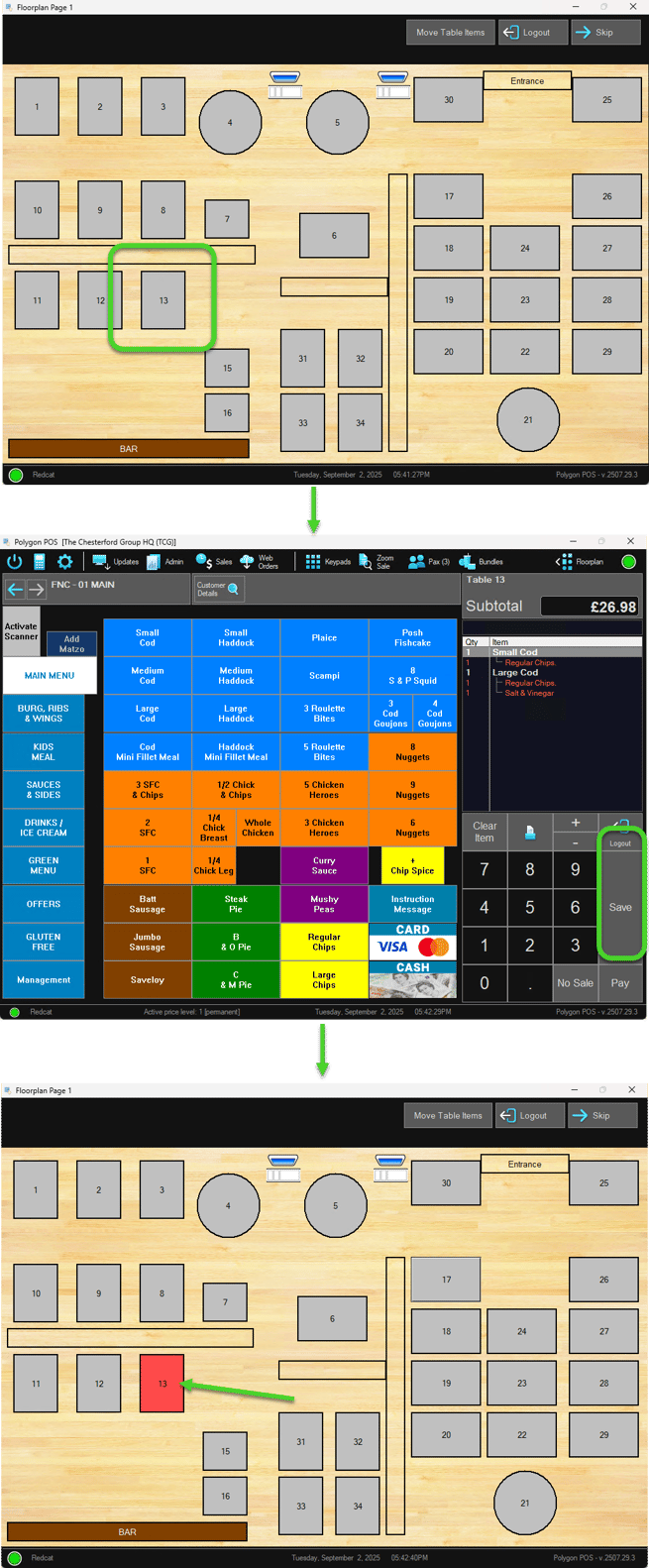
To be able to finalise a sale using Dojo Pay@Table a sale must first be saved at the POS:
- Choose a table to assign the bill to.
- Enter the menu items as normal and save the sale.
- The chosen table should now be highlighted either red or yellow (depending if the bill has been printed) to show there is an active sale assigned to that table.
Finalising a Sale at the Dojo PED
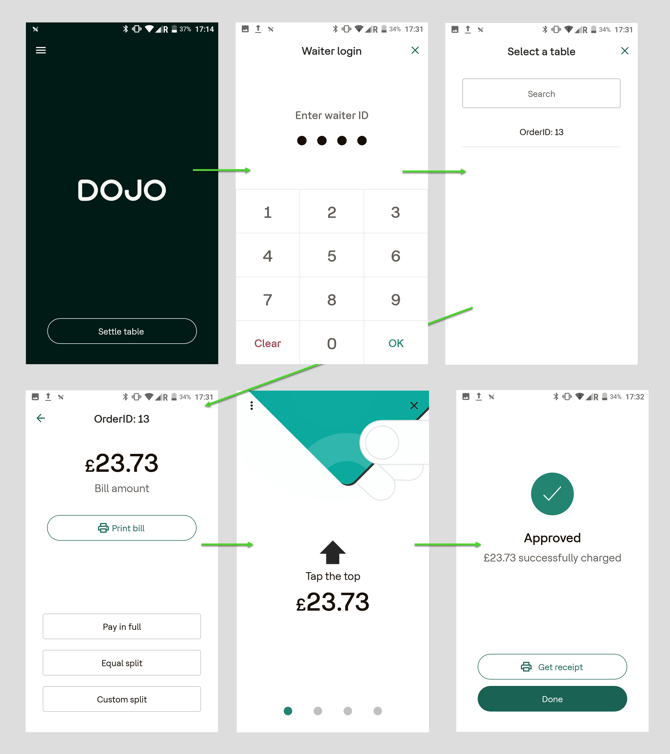
To finalise a sale using Dojo Payments at the POS Terminal:
- Click Settle Table
- Enter the POS User Pin under Waiter login
- Under Select a table, a list of available tables will show as OrderIDs.
- The OrderID number is the table number selected at the POS
- e.g.: OrderID: 13 = Table 13
- Choose to Pay in full, Equal split, or Custom split the bill.
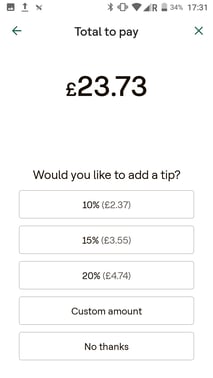
- If gratuity (tipping) is enabled, you will be presented with the option to add a tip. More information on tipping available below.
- The PED is then ready to take the payment, advising the consumer to Tap the top with their card.
Tipping
The Dojo PED may be configured for gratuity/tipping. This is where the PED shows the purchase amount and the customer is prompted on the PED to add a tip or proceed without a tip (No thanks).
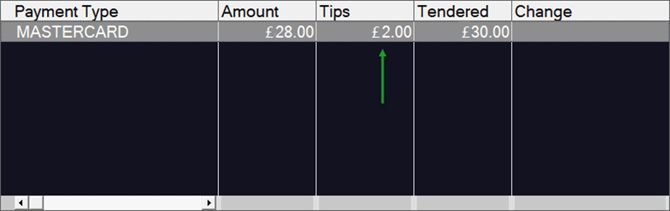
- The POS recognises the tip entered at the pinpad and this is reflected in the payment screen for the sale.
Refunding a Dojo transaction at the POS
It is possible to refund Dojo transactions that have been processed:
- at the POS (recorded in the Sales file with Integrated Eftpos media)
To refund a sale finalised via Dojo at the POS Terminal:
- Locate the transaction to be refunded in the Sales file.
- Use the Edit Sale button to recall the sale.
- On the Pay Screen, highlight the media payment.
- Choose the Delete Payment button.
- The system will advise that an EFT reversal must be issued. Choose Reverse Transaction to process the reversal.
- POS will send the reversal to the Dojo PED and display a series of updates as the customer progresses with the refund on the pinpad.
The progression of the updates are:- Starting Transaction in Progress
- Transaction Started
- Present Card
- Remove Card
- Please Wait
- Transaction Successful
- You may now either finalise the sale with another payment method, or clear the sale.
The process described above will reverse the entire media payment processed via Dojo. Alternatively, the articles listed below describe the actions required to issue either a full or partial reversal of the payment and have the system specifically record it as a refund.
There is an article with detailed instructions for Clearing Sales and Issuing Refunds.
You may also like to watch this video on the process of Issuing Refunds.
Record Locks
While the POS Terminal has a table open, the Pay@Table pinpad cannot process payments for that table. Similarly, while the Pay@Table pinpad is processing payments for a table, the POS Terminal cannot access that table.
- While the Pay@Table pinpad is processing payments for a table, this message is displayed if the POS Terminal tries to access the table.
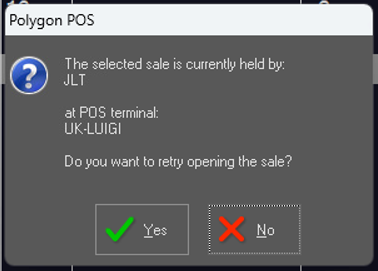
- While the POS Terminal has a table open, the table (OrderID) will not display when selecting a table on the Dojo PED
Article Change Log
| Date | Record of Changes | Author |
|
April 2026 |
First publication of this article. |
JLT |