Summary
We’ve introduced new functionality that allows businesses to assign Xero Tracking Categories and Tracking Category Options to individual store locations via Polygon Central. This enhancement enables improved sales and cost tracking within Xero, allowing merchants to segment and report on financial performance per store, without needing to maintain duplicate accounts or rely on manual adjustments.
Key Features
This functionality was developed in response to customer demand for clearer financial reporting within Xero, especially for multi-site operators who need to distinguish performance by location.
Previously, users could only sync consolidated financial data to Xero. If they needed to track sales or costs by store, they had to manually separate transactions or manage multiple Xero accounts—creating significant operational overhead and room for error.
Each Redcat store location can now be directly linked to a unique Xero Tracking Option, enabling store-level financial insights within the Xero Profit & Loss Statement or Budget Summary reports. This:
-
Eliminates the need for duplicate manual bookkeeping.
-
Supports accurate location-level performance tracking within Xero.
-
Simplifies audit and reconciliation processes.
-
Enables better decision-making with clearer financial visibility.
This feature means that customers can:
- Assign a Xero tracking category and a specific tracking option to each store.
- Sync resets into Xero with the appropriate tracking metadata for accurate store-level reporting.
- Fully self-manage tracking categories configuration in Polygon Central, there is no need for ongoing Redcat involvement once it has been enabled.
Use Cases
This feature supports:
-
Multi-site QSRs requiring a P&L per store in Xero using native tracking reports.
-
Franchise groups needing to segment sales and COGS by location in Xero without manual journal work.
-
Operators with a central Xero account for all stores wanting automated mapping of sales to the correct store's tracking option.
-
Users wanting to configure or update Xero tracking options without requiring Redcat Support.
This feature does not support:
-
Mapping different tracking options to different revenue centres within the same store.
-
Automatically syncing store details to Xero (store setup in Xero must be managed separately).
-
Support for more than one Xero tracking category (Xero supports up to two, but Redcat only supports assigning one at this stage).
Prerequisites
The following versions are required for the functionality described in this article.
-
Polygon Central deployment/release 2507.1.0 or later.
Enabling Store Based Tracking Categories
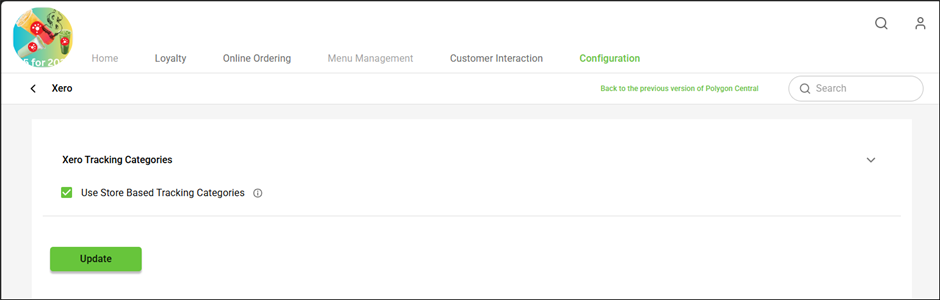
To use this functionality, you must first ensure that store based tracking categories are enabled.
To do this:
-
Access Polygon Central 2.
-
Navigate to Configuration | Integrations | Xero Configuration.
-
Ensure the Use Store Based Tracking Categories option is enabled.
Setting the Tracking Category and Option
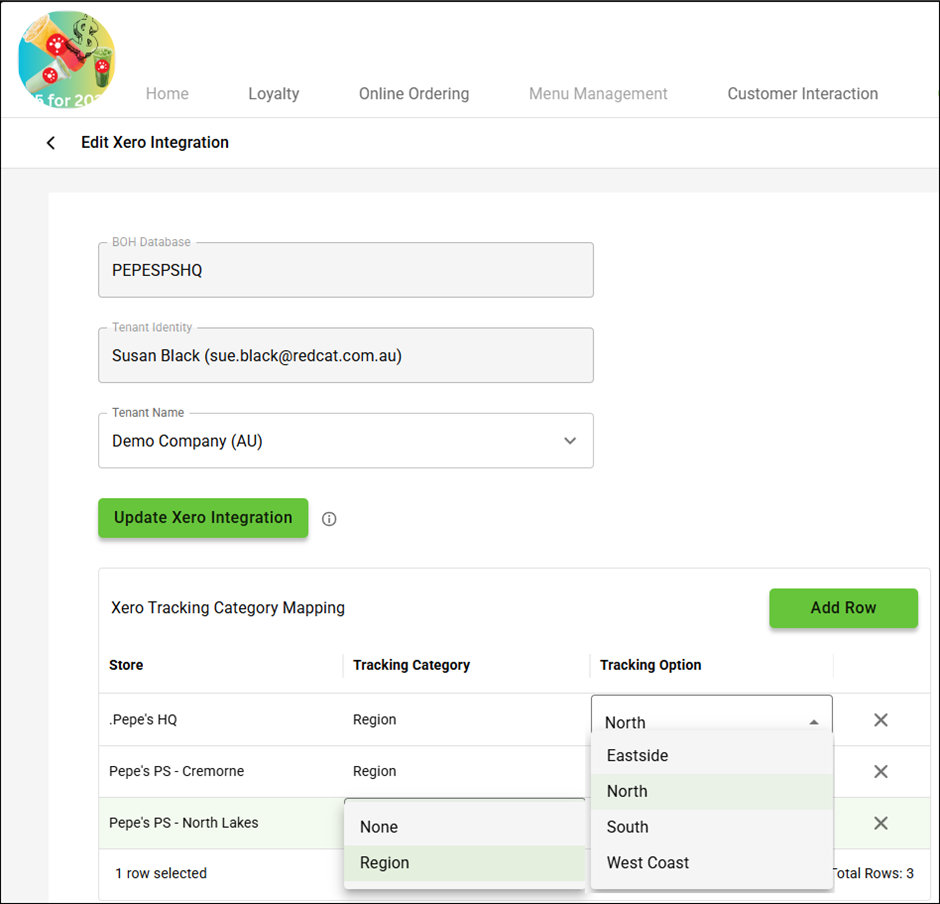
To set the tracking category and tracking option applicable to each store:
-
Navigate to Configuration | Integrations | Xero.
-
Select the correct BOH database record and click it to open.
- In the Xero Tracking Category Mapping section, click the Add Row button.
The system will read the locations programmed in the database and add them to the table, starting with the lowest Location ID. Keep adding rows until all your locations are listed in the table. - Double click the Tracking Category field and select the required category from the drop-down options (these will show the tracking categories programmed in Xero).
- Double click the Tracking Option field and select the required option from the drop-down options (these will show the tracking options programmed in Xero).
- Use the Submit button to save your programming.
Related Functionality
Article Change Log
| Date | Record of Changes | Author |
|
March 2026 |
First publication of this article. |
Susan B |