
Summary
Customers may choose to use Tyro as the payment gateway for e-commerce transactions when utilsing MIM and OLO3 for online ordering.
This document describes the process for working with Tyro e-Comm transactions in Polygon Central 2.
Accessing Transactions
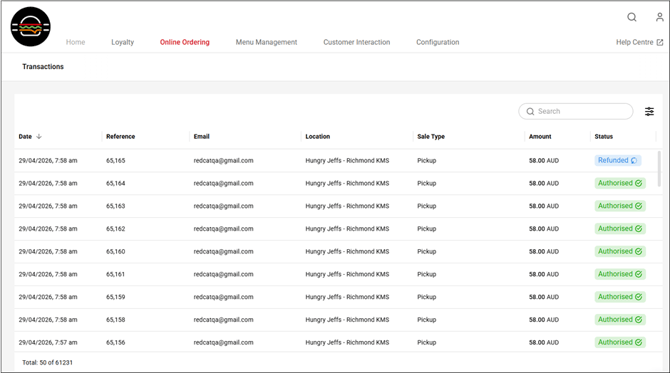
You can access the transactions that have been processed with a payment through Tyro.
To do this navigate in Polygon Central 2 to Online Ordering | Surcharges & Fees | Transactions.
The transactions will be listed with the following detail:
-
Date
-
Reference
-
Email
-
lication
-
Sale Type
-
Amount
-
Status
Viewing Transaction Details
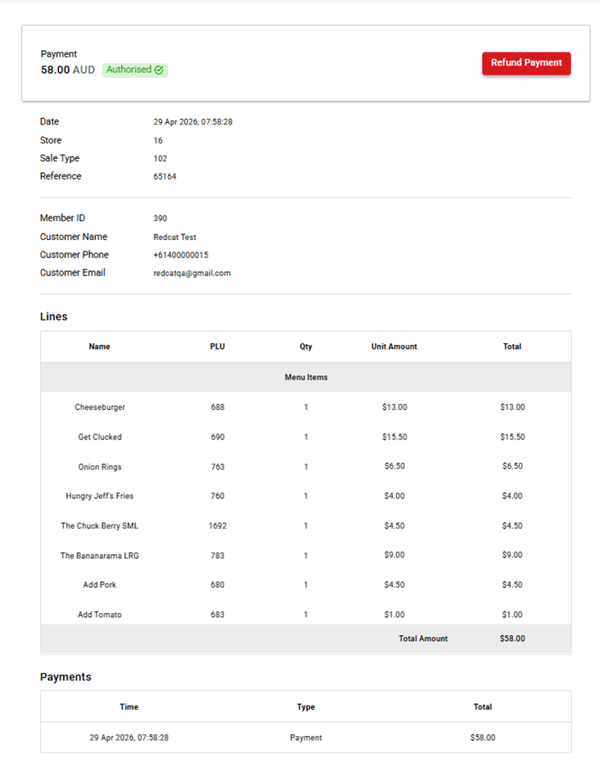
Selecting any transaction line will open the record for that transaction and provide details on:
-
The order header (date, time, location, sale type)
-
The customer (member, name, contact details)
-
The items
-
The payment
Refunds
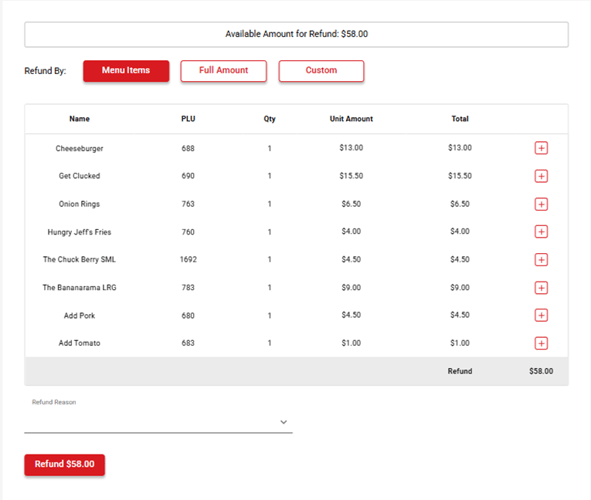
Refunds may be processed for:
-
the value of specific menu items
-
the full amount of the payment
-
a custom amount
To process a refund:
- open the record of the transaction
- use the Refund Payment button
- select the required refund method
- use the + on individual menu item(s)
- choose 'full amount'
- enter a specific amount in the 'custom' option - Select the Refund Reason from the drop-down list
- Use the Refund $ button to process the refund
The status on the transaction line will be updated to refunded.
Article Change Log
| Date | Record of Changes | Author |
|
April 2026 |
First publication of this article. |
S Black |