
Summary
Redcat Pay is an integrated end-to-end payment solution that enables hospitality businesses to seamlessly accept and manage transactions across every channel—POS, web, app & kiosk.
With support for all major payment methods and built-in fraud protection, it delivers a fast and secure consumer experience. At the same time, centralised controls, automated settlement, and enhanced reconciliation simplify operations for both corporate and partner entities, providing a single, transparent view of performance across the entire business.
It is available to Redcat customers in Australia, New Zealand, and the UK.
The Product Overview article for Redcat Pay is here.
Accessing Redcat Pay
You can access the Redcat Pay menu in Polygon Central 2 at Ordering | Redcat Pay. The menu options are:
-
Disputes
-
Orders
-
Payouts
-
Transactions
User Roles
Admin users will require the following user roles to access and interact with Redcat Pay.
-
RCP - Ops (orders/transactions)
-
RCP - Payouts
-
RCP - Disputes
Orders
The orders file is located in Polygon Central 2 at Ordering | Redcat Pay | Orders.
This file contains details of all the sales, processed via web, app, kiosk or POS, where any or all of the finalisation media was via Redcat Pay.
You can use the filter buttons to narrow/expand the list of orders.
-
Location
select a specific location to list only orders for that location
remove any selection to view the orders from all locations -
Order Type
choose the required order origin from the list
the loyalty channel is online purchases of gift cards or member cash topups -
Date/Time Range
choose a time or date range from the drop-down list if required
You can export the list of orders displayed to CSV using the Export CSV button.
Entering an amount in the search field will return a list of orders with that amount.
You can use the more options (ellipsis) button next to each column heading to sort or filter on that column.
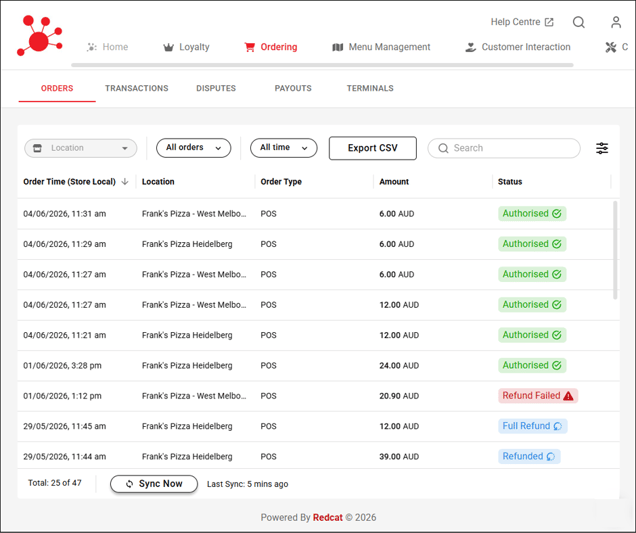
Orders are listed with the following detail:
-
Order Time
-
Location
-
Order Type
-
Amount
-
Status
- Authorised
- Refund in Progress
- Refunded
- Full Refund
- Disputed
- Chargeback
- Refund Failed
Viewing Order Details
Selecting any order line will open the record for that order and provide details on:
-
The order header (date, time, location, sale identifiers)
-
The customer (member, name, contact details) if known
-
The items in the order
-
The payment(s) details
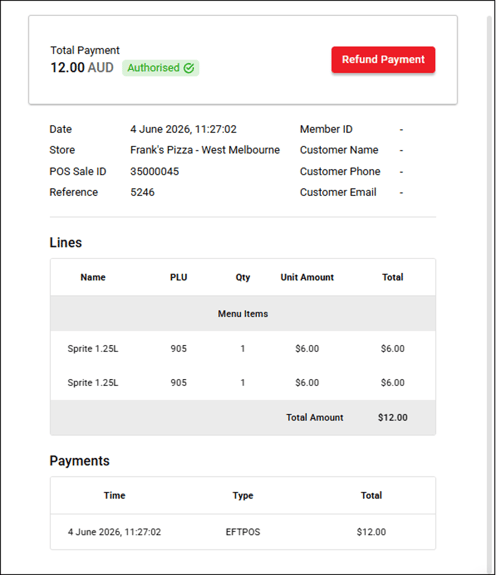
The Refund Payment button is used to process a refund for the payment on this order.
Transactions
The transaction file is located in Polygon Central 2 at Ordering | Redcat Pay | Transactions.
This file contains details of individual payment transactions (including refunds) processed by Redcat Pay.
You can use the filter buttons to narrow/expand the list of orders.
-
Location
select a specific location to list only payment transactions for that location
remove any selection to view the transactions for all locations -
Order Type
choose the required order origin from the list
the loyalty channel is online purchases of gift cards or member cash topups -
TransactionType
choose all, payments or refunds from the list - Date/Time Range
choose a time or date range from the drop-down list if required
You can export the list of payment transactions displayed to CSV using the Export CSV button.
Entering an amount in the search field will return a list of payment transactions with that amount.
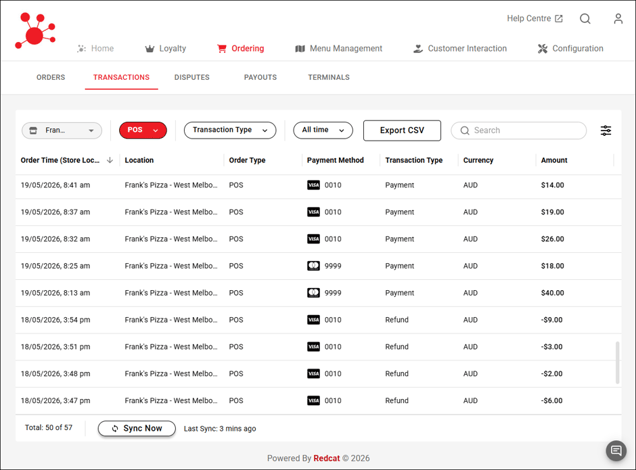
Payment transactions are listed with the following detail:
-
Order Time
-
Location
-
Order Type
-
Payment Method
-
Transaction Type
- Payment
- Refund -
Currency
- Amount
Viewing Payment Transaction Details
Selecting any transaction line will open the record for that transaction and provide details on:
-
The payment amount and payment method
-
The payment summary (date, time, location, sale channel, order and payment identifiers)
-
The payment timeline (chronolgoical payment & refund details, and statement to Net Amount paid.
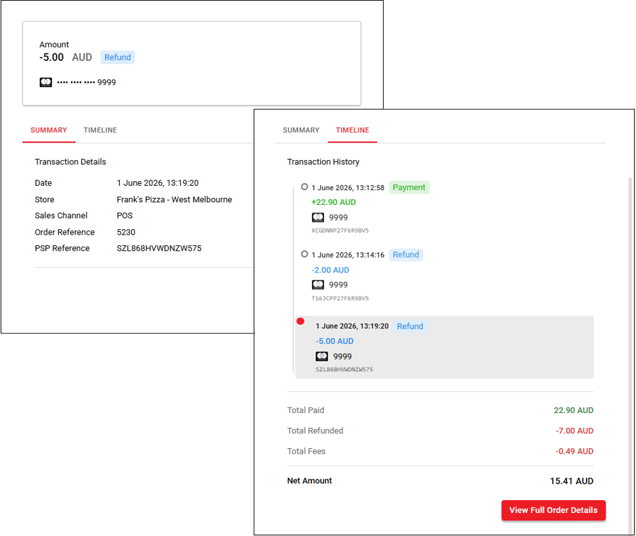
The View Full Order Details button will open the Order Details showing the complete data for the sale.
Refunds
Refunds may be processed for:
-
selected menu items from the order (for all sales channels except POS)
-
the full amount of the payment
-
a custom amount
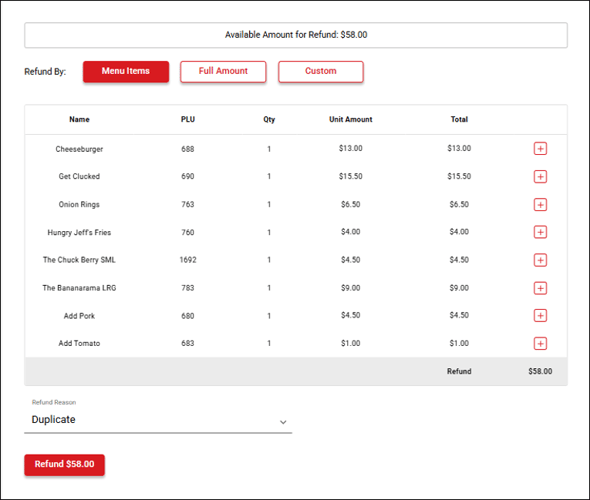
To process a refund:
-
open the record of the order
-
use the Refund Payment button
-
select the required refund method
- use the + on individual menu item(s)
- choose full amount
- enter a specific amount in the custom option -
Select the Refund Reason from the drop-down list
-
Use the Refund $ button to process the refund
The status on the order line will be updated to refunded.
Disputes
The dispute file is located in Polygon Central 2 at Ordering | Redcat Pay | Disputes.
Redcat Pay users should expect significantly reduced instances of disputes, as strong cardholder authentication is applied by default on every online and app-based transaction.
What does this mean, and why does it reduce disputes?
Cardholders verify their identity at the time of purchase. The card issuer actively confirms the transaction with the cardholder in real time, making it significantly harder for unauthorised use to go undetected. Fraud-related disputes are substantially reduced because the issuing bank participates in verifying the transaction, and therefore the grounds for a 'I didn't make this purchase' dispute are greatly diminished. Liability protection is strengthened. When authentication has been completed, responsibility for fraud-related chargebacks typically shifts away from the merchant and toward the issuing bank — meaning fewer successful disputes against the merchant even when they do occur.
Additionally, seamless refund processing at POS and Kiosk reduces the conditions that typically give rise to chargebacks.
You should still monitor for disputes and respond promptly when they arise, but the overall rate is expected to be well below what may be experienced with a non-integrated payment solution.
Generally, disputes can be categorised into two groups:
- Chargebacks
(the payment amount and a chargeback fee is debited to your account) - Fraud alerts
(no payment is debited at this stage, you may want to initiate a refund, this may later become a chargeback)
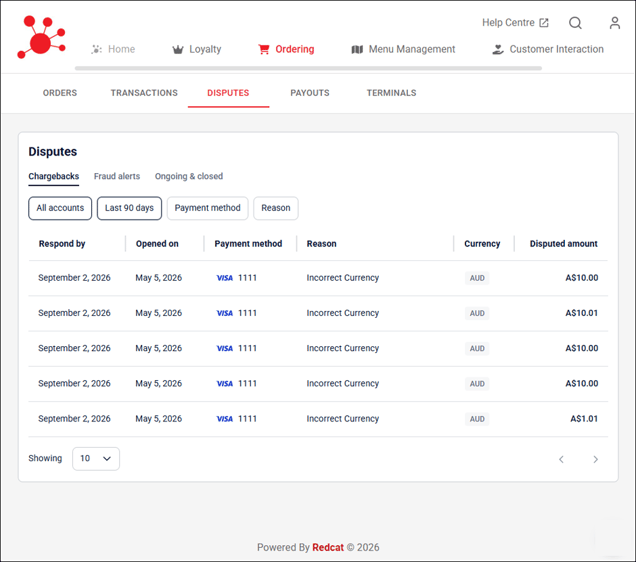
You can use the tabs to view listings of the dispute types:
-
Chargebacks
the list of chargebacks that have been neither accepted or defended -
Fraud alerts
the list of payments that have been notified as fraudulent -
Ongoing & closed
this list of chargebacks that have either been closed, or are in the process of being defended
You can use the filter buttons to narrow/expand the list of disputes shown in each type.
-
Accounts
Select all accounts, or choose a specific balance account -
Date range
choose a date range from the drop-down list or use the calendar to select a day
the default is the last 90 days -
Payment method
select one or more payment types from the list provided
the default is all payment methods -
Reason
select one or more reasons from the list provided
the default is all reasons
Chargebacks
A chargeback takes place when a cardholder disputes a payment and asks their issuing bank to reverse it. To charge back the payment, the bank submits a formal dispute on behalf of the cardholder.
You can choose to accept or defend a chargeback. The amount of time you have to respond to the chargeback varies by scheme (between 14-40 days). You can see the relevant date listed in the Respond by column. If you do not respond by this date, the chargeback will be deemed to be accepted.
Accepting a chargeback
To accept a chargeback:
-
click on the chargeback in the list.
-
use the Accept button
-
acknowledge the action by selecting the I agree checkbox use the Accept chargeback button
The chargeback will be moved to the Ongoing & closed tab and the status listed as accepted.
The accepted status and the date/time of the acceptance will also be shown when the chargeback is selected from the list. 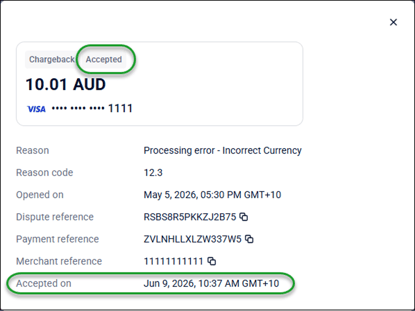
Defending a chargeback
If you wish to defend a chargeback, you can uploaded supporting documentation as evidence that the transaction is valid and the funds should be returned to you. It is important to note that it is the issuing bank (the customer's bank that initiated the dispute) who will make the final decision on the outcome.
To defend a chargeback:
-
click on the chargeback in the list.
-
use the Defend chargeback button
-
select the reason you are defending the chargeback from the drop-down list and use the continue button
- use the Browse files link to select the document you wish to upload
ensure the document meets the specifications listed in the documents requirements section, is well organised and contains sufficient detail/images of transactions to help you build a strong case to challenge the dispute - use the submit button to process the defense
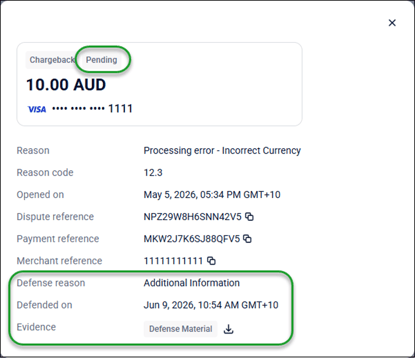
The chargeback will be moved to the Ongoing & closed tab and the status listed as pending.
The pending status and the details of the defense will also be shown when the chargeback is selected from the list.
Fraud Alerts
Fraud alerts are real-time risk notifications designed to flag suspicious transactions, bot activity, or account takeovers before they result in financial loss or costly chargebacks.
The system uses global data to detect anomalies - such as VPN usage, mismatched billing locations, or fraud farms - and calculate a risk score.
You should:
- review the alert
check if the alert is a Notification of Fraud (NoF) or a chargeback. A NoF means the issuing bank suspects fraud, but no money has been withdrawn from your account yet. - refund decision
If you identify the payment as fraudulent, it is recommended that you refund the transaction immediately to prevent it from escalating into a chargeback that incurs fees.
Payouts
The payouts file is located in Polygon Central 2 at Ordering | Redcat Pay | Payouts.
Redcat Pay customers receive settlement of funds on T+1 (one business day after the trade day) generally around 10:00am. The payout will be comprised of the total amount of payments processed on the previous trading day, less applicable fees and adjustments (refunds and chargebacks etc).
Note: payouts due on public or bank holidays be processed on the following business day.
This file contains details of the payouts for each location.
You can use the filter buttons to narrow/expand the list of orders.
-
Location
select a specific location to list only payout records for that location
remove any selection to view the payout records for all locations -
Order Type
choose the required order origin from the list
the loyalty channel is online purchases of gift cards or member cash topups -
TransactionType
choose all, payments or refunds from the list - Date/Time Range
choose a time or date range from the drop-down list if required - You can choose to Hide Booked Payouts if required.
a booked payout is the status of a successful automated scheduled payout
enabling this option will leave only pending payouts
You can export the list of payment transactions displayed to CSV using the Export CSV button.
Entering an amount in the search field will return a list of payouts with that Net Payout amount.
Related Articles
Article Change Log
| Date | Record of Changes | Author |
|
June 2026 |
First publication of this article. |
S Black |