
Summary
Redcat Polygon Central posts your sales and Redcat Pay payouts straight into MYOB, so your accounts stay current without manual journals. This article covers what you need to map, how to set the integration up, and how to fix a posting that's gone wrong.
Contents
Considerations for Redcat revenue account structure
Tips for a Successful Integration
Redcat Pay Payout Reconciliation
The MYOB File
Redcat Polygon can integrate with an online MYOB file, or one that is connected to your online my.MYOB account.
How it works
The integration between Redcat Polygon and MYOB creates a mapping between the Chart of Accounts in each program, including instructions on which GST types are relevant to each account.
Information contained within the sales reset from the POS is posted to MYOB when the reset is processed in Polygon POS Management in the form of a Transaction Journal – for users running perpetual stock this will include the Asset | Cost journal relevant to stock decrementation.
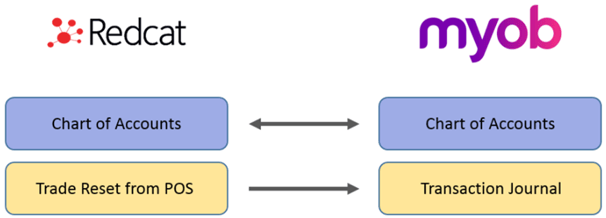
If you take payments through Redcat Pay, each payout into your bank account is recorded in MYOB automatically, along with the processing fee that came out of it. Your MYOB bank balance then matches your real bank statement without a manual journal.
Both run over the same MYOB connection, so you only authorise Redcat once. The rest of this article covers the sales journal export first, then Redcat Pay payout reconciliation.
Considerations for Redcat revenue account structure
The MYOB financial integration operates on a 'split revenue methodology' which means the system determines the amount of GST included in the sales and if neccessary will include both a GST and FRE line for a single ledger account if required. This means that you are not required to have a GST Inc and GST Free version of general ledger accounts within the Redcat chart of accounts.
However, some clients want this for reporting purposes. For example:
4-1103 Beverage Sales
4-1104 Beverage Sales - GST Free
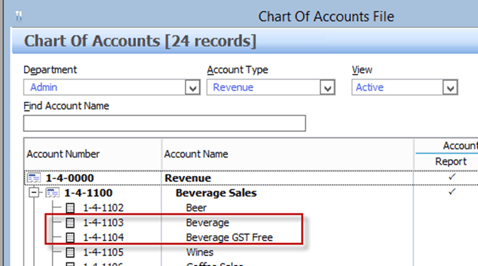
If you create general ledger accounts in this way and assign the PLUs to the relevant ledger account, please be aware that programming mistakes (for example, a GST Inclusive PLU assigned to the GST Free ledger account) will not cause the integration to fail when processing the reset.
The programming can be corrected, and any back adjustment required should be made in the
MYOB database.
Paid Out Expenses
The same methodology applies to Paid Out transactions entered at the POS.
You may have a mix of GST Inc and GST Free Paid Out buttons programmed to the same ledger account (perhaps to the Expense account 5-2001 Miscellaneous Expenses) and these will be included in the MYOB transaction journal with the correct GST or FRE identifier.
Revenue Assignment for Instruction PLUs with Dynamic GST Type
The PLU Category setting Inherit GST Type from parent item for instructional PLUs allows clients to utilise one set of Instruction PLUs to apply to different menu items (eg. Add Extras, etc). If the parent item is GST Free - the instruction will also be recorded as GST Free, if the parent item is GST Inc the instruction will also be recorded as GST Inc, regardless of the GST Type programmed for the instruction PLU.

With the MYOB Financial Integration, Instruction PLUs that Inherit GST Type from parent item will also inherit the revenue account of the parent item.
If an instructional PLU assigned to a category where the Inherit the GST type from parent item is enabled is sold with a parent PLU that has a split revenue assignment, the revenue account inherited will be the default revenue account assigned to the parent.
If a PLU in the category is sold without a parent item, the GST type and revenue account programmed for that PLU will apply.
Tips for a Successful Integration
The progression to successful integration will be much smoother if you understand all the elements involved before you start the process and can map all possible accounts.
Collect the list of accounts.
It is recommended that you run the following reports to help determine which ledger accounts will need to be mapped.
- PLU List by Revenue Account (to determine all possible revenue accounts that should be included in the mapping)
- POS Media Log (to determine which media types need to be mapped)
- Paid Out Report (to determine if expense/cost accounts must be included in the mapping.
- Stock items List (if Polygon Inventory is running you will need to know which asset and cost accounts are attached to stock items)
|
Asset Accounts |
These will be the media types. Think about if you want a direct ‘like for like’ mapping (cash to cash, eftpos to eftpos, Amex to Amex etc) or do you want to map all media to a clearing account, or a combination of the two. Are you using Polygon Inventory? If so, which asset accounts are attached to stock items. If you process Client Account charges at POS these affect the Accounts Receivable ledger account in Redcat (see note below for recommendation). |
|
Liability Accounts |
Do you have Polygon Loyalty with hybrid cards or gift cards? If so, you will need to map the Unexpired Gift Card liability account. |
|
Revenue Accounts |
Check the Sales by Revenue Account report to ensure that you map all the relevant revenue accounts. POS Discounts, POS Surcharges and Cash Over/Under are system revenue accounts and will also need to be mapped. |
|
Expense Accounts |
Check the Paid Out report to find out which expense accounts (if any) will need to be mapped. |
|
Cost Accounts |
Are you using Polygon Inventory? If so, which cost accounts are assigned to stock items. |
Note: Businesses that process Client Account charges at POS are advised to map the Redcat Accounts Receivable Asset account to a generic clearing account in MYOB.
For example: ‘POS Client Charges’, ‘POS Client Clearing Account’ or something similar. This is because the integration will send account charges as a transaction journal and client invoices will not be created in MYOB. Users can then enter the relevant client invoice in MYOB as required, against this clearing account.
Determine the GST Implications.
When each ledger account is mapped, the default GST type that will be assigned to transactions sent from that account must also be assigned.
The default GST types accepted by MYOB are:
-
GST
-
FRE
-
N-T
Generally, Asset and Liability accounts have no GST implication (N-T), while Revenue, Expense and Cost accounts are affected by GST (GST or FRE).
If you are running Polygon Inventory a perpetual stock decrementation will be processed as part of the reset. This movement between asset and cost has NO GST implication so N-T should be chosen for the asset and cost accounts that are assigned to stock items.
This table can be used as a guide.
|
Ledger Type |
Description |
GST Type |
|
Asset |
Asset accounts listed in the external mapping will be:
|
|
|
Liability |
Liability accounts could be:
|
|
|
Revenue |
Revenue accounts listed will be:
|
|
|
Expense |
Expense accounts listed could be:
|
GST |
|
Cost |
Cost accounts could be:
|
|
Software module setup
Redcat Implemenations or Support staff will facilitate the setup of the correct modules and walk you through the process to authorise the authentication between Redcat Polygon and MYOB.
As part of the installation process, they will also facilitate the following settings and programming. We have included them here for your information and future reference.
Polygon POS Management Setup
These are the configuration settings required in the Polygon POS Management database.
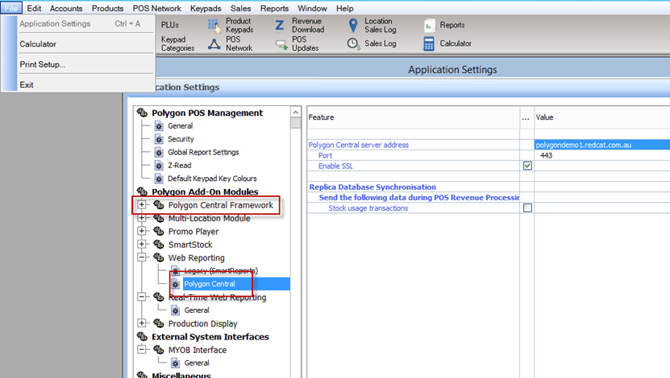
Under File | Application Settings | Polygon Add-On Modules
- Choose Polygon Central Framework and ensure it is enabled.
- Choose Web Reporting | Polygon Central and ensure the Polygon Central server address is configured.
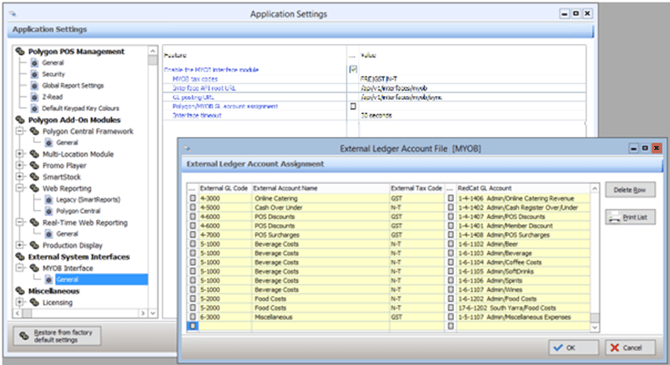
Under File | Application Settings | External System Interfaces
- Choose MYOB Interface | General
- Ensure Enable the MYOB interface module is on
- In the MYOB tax codes field, enter the account tax codes required for mapping, followed by pipe separators (with no extra spaces). These will become available in the External Tax Code pick list.
You can copy the MYOB tax codes below.
GST|FRE|N-T - Interface API root URL:
/api/v1/interfaces/myob - GL posting URL:
/api/v1/interfaces/myob/sync -
Use the select icon next to Polygon/MYOB GL account assignment.
- Press the select icon in the left column, this will display a list of MYOB accounts for this client, which are retrieved via API.
- [NOTE: if an access error is displayed at this point, then Redcat Polygon Central could not connect to MYOB. Check the Polygon Central interface settings and login details as per above]
- Select the relevant MYOB GL account, set the most relevant tax code for this account (the split methodology will send both GST and FRE if required), then select from the right-side list to apply the corresponding Redcat GL account.
- Continue until all relevant accounts are mapped and use the OK button to save.
- In the Interface Timeout field, enter the amount of time (in seconds) that the system will wait for a response before deeming the posting to have timed out.
Processing Resets
With the module correctly enabled, posting from Redcat to MYOB will occur automatically when sales resets are processed in the Revenue Download screen or via the auto-download and processing service.
If a Redcat account is detected in the GL Reference of a sales reset, which has not been mapped to an external MYOB account as per the section above, the following errors will be displayed specifying the offending account(s):
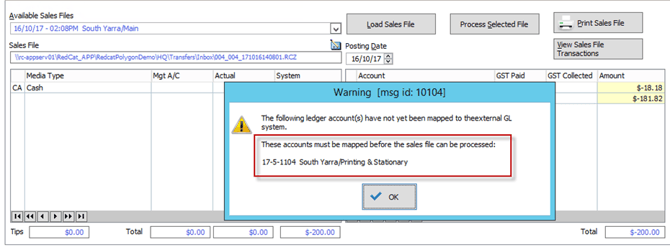
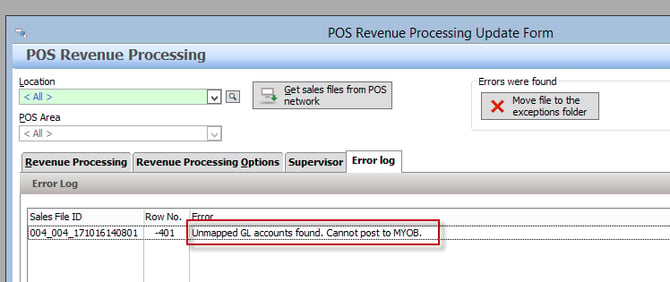
The reset will not be processed in Polygon POS Management until this is rectified. Follow the steps above to map the account correctly then return to Revenue Download to attempt the process again.
Reset Corrections
If for any reason you desire to change a reset and reprocess it, you will need to ensure that the relevant transaction journal(s) in MYOB are removed prior to the resend so as to safeguard against overstating of revenue figures.
- Identify the relevant transaction journal(s) created by this sales reset in MYOB.
- Delete the relevant transaction journal(s) from MYOB.
- Contact Redcat Support to perform reset correction in Polygon POS Management (if required).
- Re-process the corrected reset.
- Verifies the correct result in MYOB.
Redcat Pay Payout Reconciliation
What it does
When Redcat Pay pays your takings into your bank account, that deposit is called a payout. This part of the integration records each payout in your MYOB company file for you.
For every payout it books two things:
- the money you earned, as gross revenue received into your bank account
- the processing fee the payment provider kept, as an expense
If a payout had no fee, only the revenue entry is created.
The two entries net out to the amount that actually hit your bank, so the account reconciles cleanly against your bank statement.
For example, you take $1,000 in sales. The processor keeps $20, so $980 lands in your bank. MYOB records $1,000 received and a $20 fee paid. Net: the $980 you can see on your statement.
Each payout is posted once, and only once. Before creating either entry the integration checks whether it's already in your MYOB file, so a retry or a stray click on Export won't give you a second copy.
What you need first
- a MYOB AccountRight company file
- Redcat Pay live at the store, with payouts reconciling
- permission to manage Redcat Pay payouts
You'll also need four decisions from you or your bookkeeper before you fill in the form:
| Decision | What it's for |
|---|---|
| Which MYOB bank account | Where the Redcat Pay deposits land |
| Which revenue account | Records the gross sales |
| Which expense account | Records the processing fees |
| Which tax codes | Applied to the revenue line and the fee line |
Setting it up
1. Connect MYOB. Connect your MYOB company file to Redcat and authorise access when prompted.
If your MYOB login has more than one company file, you'll be asked which one this store posts to. Some company files also want a username and password of their own. That defaults to Administrator with no password, which is right for most setups.
Already connected for the sales journal export? Then you're reusing that same connection and don't need a second one. You may be asked to reconnect and re-approve permissions the first time you switch payout reconciliation on, because it needs two permissions the original connection never asked for: banking and contacts.
2. Open the MYOB configuration form. Go to the MYOB settings in the configuration screens. This is where you tell Redcat how payouts should be recorded. The dropdowns are pulled live from your connected company file.
3. Fill in the settings.
| Setting | What to choose |
|---|---|
| Enabled | Turns automatic export on and off. |
| Bank account | The MYOB bank account your Redcat Pay deposits land in. |
| Contact (optional) | A MYOB contact to attach to the transactions, if you want one. |
| Receive account | The revenue account that records gross sales. |
| Receive tax code | The tax code applied to the gross revenue line. |
| Spend account | The expense account that records processing fees. |
| Spend tax code | The tax code applied to the processing fee line. |
Only active, postable accounts appear in the dropdowns. MYOB won't let money be booked against a header account or one you've deactivated, so those are filtered out.
4. Save. Your settings are checked against your MYOB company file the moment you save. If something's wrong, say an account no longer exists in that file, or your connection doesn't yet have the permissions this needs, you'll see the error there and then rather than finding out days later when a payout quietly fails to export. A permissions error will tell you to reconnect MYOB.
Once it saves and Enabled is on, you're done.
When payouts export
With Enabled switched on, exports happen on their own. As soon as a payout is confirmed and reconciled, it's queued and sent to MYOB. Nobody needs to do anything.
You can also export a payout by hand from the Payouts screen. That's there for pushing a single payout, retrying one that failed, or back-posting payouts from before you set the integration up.
Pausing exports. Switch Enabled off in the MYOB configuration form and payouts stop exporting automatically. Turn it back on and they resume.
Disconnecting MYOB is a bigger step. The same connection also powers the sales journal export, so if you use both, have a word with your bookkeeper before you disconnect.
Checking on a payout
The Payouts table shows you where each payout is up to.
Last Export shows an icon for exported, failed, or not yet exported. Hover over it for the label.
Provider Export shows an Export button for payouts that are ready to send, meaning reconciled, settled, and with an active MYOB integration. If a payout isn't ready, you'll see Unable to export with a tooltip telling you why, for example that it hasn't reconciled yet or that no integration is configured.
When you click Export, the message tells you what actually happened, not just that it worked. If the payout was already sitting in MYOB from an earlier attempt, you'll be told nothing new was posted.
If an export fails, the failure is recorded against the payout and the status icon shows failed. Retry it from the Payouts screen whenever you like. If part of the payout made it into MYOB before the failure, say the revenue went through and the fee didn't, a retry sends only the missing piece.
Frequently asked questions
Do I have to export payouts manually?
No. With the integration enabled, payouts export on their own once they're reconciled. Manual export is there for one-offs, retries, and back-posting.
Will I ever get double entries in MYOB?
No. Before creating either entry, the integration checks whether it's already in your file and leaves it alone if it is. That check looks at MYOB itself, so it holds for as long as the entry exists, not just for a few minutes after posting.
What if my MYOB connection doesn't have the right permissions?
If your store was using MYOB before you turned on Redcat Pay, your connection may only have the older, narrower set of permissions. The first time it matters, either when you save the configuration or when a payout tries to export, you'll get a message telling you to reconnect MYOB. Reconnecting asks for the extra permissions.
What happens to my sales journal export if I disconnect MYOB?
It stops too. Both parts of the integration share the one connection.
Can I back-post payouts from before I set this up?
Yes, using the Export button on the Payouts screen, one payout at a time.
Article Change Log
| Date | Record of Changes | Author |
|
September 2026 |
|
A Crosland |
|
January 2024 |
Migration of old customer cheat sheet to knowledge base article. |
S Black |
|
February 2024 |
Updated to include note that integration works with MYOB online files. |
S Black |