
Summary
Daypart Menus let you define named time windows - for example Breakfast, Lunch or Late Night -and assign menu items, composite items and submenus to those windows in one place. Items and submenus only appear on the supported delivery platform during the hours of the daypart they are assigned to.
Daypart Menus replaces the legacy per-item approach (Daypart Menus in OLO3) with a single, central scheduling layer:
|
Without Enhanced Daypart Menus |
With Enhanced Daypart Menus |
|
Set availability on each of 50 items individually |
Create one Breakfast daypart and assign 50 items to it |
|
Duplicate submenus to apply different time slots |
Assign different time slots to the same submenu - no duplicates needed |
|
No central view of time-based availability |
One daypart table shows all time slots at a glance |
|
Same behaviour on every aggregator |
Aggregator-aware: DoorDash and Uber Eats apply configured daypart menus and other aggregators keep using existing fields |
Important: Daypart Menus are different from Daypart Menu Mapping. Menu mapping schedules a full menu swap at a set time. Daypart Menus schedule individual items, composite items or submenus within a single menu.
Supported Ordering Channels
Daypart Menus is an opt-in feature. As of the 26.04 release, Daypart Menus can be used with Web Ordering, Mobile Ordering, Kiosk Ordering, UberEats and DoorDash. Existing menus and aggregators continue to work exactly as they do today until you create your first daypart.
|
Channel |
Daypart Availability |
How availability is delivered |
|
Redcat Web Ordering |
Full |
Dayparts configurable for Items, Composite and Submenus (as of the 26.04 release). |
|
Redcat Mobile Ordering |
Full |
Dayparts configurable for Items, Composite and Submenus (as of the 26.04 release). |
|
Redcat Kiosk Ordering |
Full |
Dayparts configurable for Items, Composite and Submenus (as of the 26.04 release). |
|
DoorDash |
Full |
Native item_special_hours on items and item_extra_option_special_hours on ingredients (choice options) |
|
Uber Eats |
Full |
Native visibility_info.hours_of_week on items |
|
Hungry Panda |
Legacy only |
Continues to use the existing per-item availability fields |
|
Grab |
Legacy only |
Continues to use the existing per-item availability fields |
|
Just Eat |
Legacy only |
Continues to use the existing per-item availability fields |
|
Deliveroo |
Legacy only |
Continues to use the existing per-item availability fields |
Important: When a menu items are assigned to a DoorDash or Uber Eats ordering provider and exist within at least one daypart assignment, the legacy Available Times fields on items and submenus in that menu are hidden and replaced with the notice "This menu uses dayparts for scheduling." This prevents conflicting configuration. Aggregators that don't support dayparts natively continue receiving traditional availability data, untouched.
Before You Start
Before you can manage dayparts, you'll need:
- A user account in Polygon Central 2 (PC2) with both the dayparts_view and dayparts_update roles. Ask your administrator to assign these in User Management if Dayparts doesn't appear in your navigation.
- A list of the time windows you intend to operate. For example, Breakfast 6:00AM to 11:00AM, Monday to Friday).
How to Access
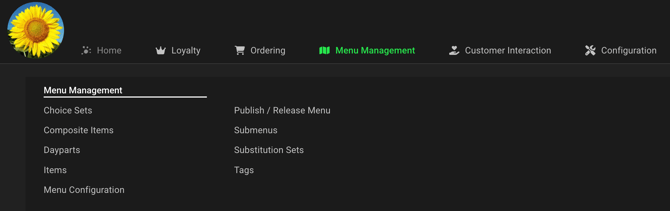
In PC2, go to Menu Management → Dayparts.
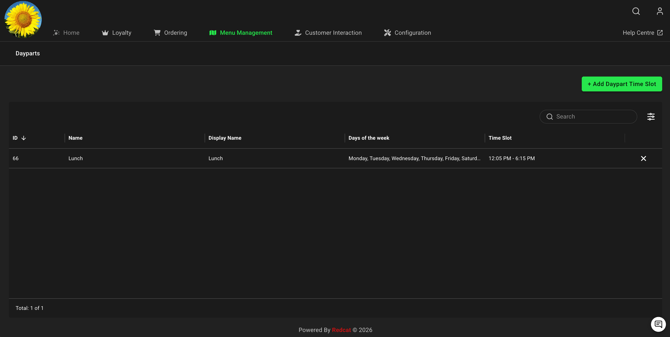
The Dayparts screen lists every daypart you have configured, including its name, display name, days of the week and time slot.
From here you can:
- Create a new daypart
- Edit an existing daypart
- Delete a daypart
- Sort the table by any column
Create a Daypart
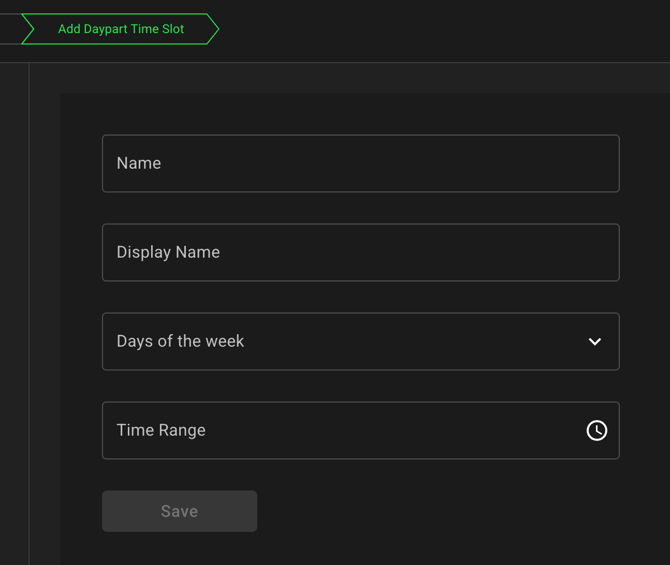
- From Menu Management → Dayparts, click + Add Daypart Time Slot.
- Enter the daypart details:
- Click Save.
|
Field |
Description |
Rules |
|
Name |
Internal reference used in audit logs and the API (for example, breakfast). |
Required. |
|
Display Name |
Customer-facing label for the time window (for example, Breakfast Menu). |
Required. |
|
Days of Week |
Days the daypart applies to. |
Required. |
|
Start Time |
Time the daypart becomes active (HH:MM). |
Required. |
|
End Time |
Time the daypart ends (HH:MM). |
Required. |
Overnight time windows
Start and end times accept free-text HH:MM input, including time windows that cross midnight (for example, Late Night 22:00 – 02:00). Overnight dayparts are automatically split per provider so they're delivered correctly to DoorDash and Uber Eats.
Assign Items, Composite Items and Submenus
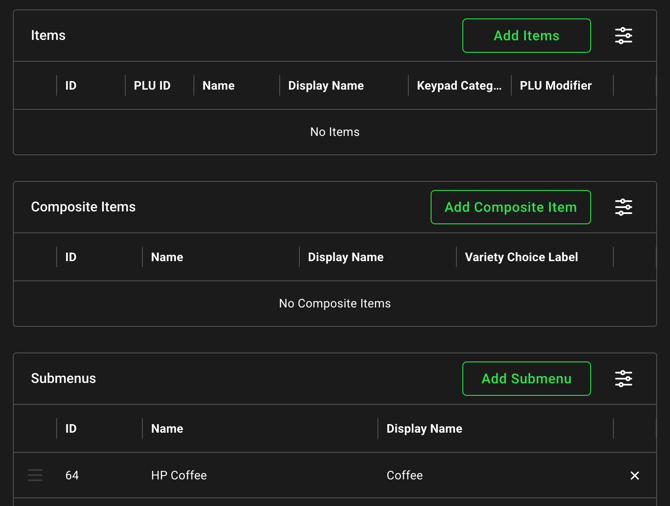
After you save a new daypart you'll be returned to the daypart edit screen, which now shows three assignment grids:
- Items - individual products
- Composite Items - sized / multi-variant products
- Submenus - categories of items
For each daypart:
- Click Add Items or Add Composite Items or Add Submenu.
- Search or browse for the item, composite item or submenu you want to include in this daypart.
- Select one or more entries and confirm.
The same item, composite item or submenu can be assigned to more than one daypart. For example, an All-Day Coffee item could belong to both Breakfast and Lunch.
How submenu (category) inheritance works
When you assign a submenu to a daypart, every item inside that submenu - including items inside any nested submenus - automatically inherits the time window. You don't need to assign each item individually. An item's final availability is the union of:
- Dayparts assigned directly to the item
- Dayparts assigned to any submenu that contains the item (including via nesting)
- For composite/sized items: dayparts assigned to the parent composite product
Publish Menu
Daypart changes are not pushed to DoorDash or Uber Eats until the menu is sync'd.
- Go to Menu Management → Publishes.
- Trigger a new menu publish/sync for the affected location(s).
- Confirm the publish/sync completes successfully.
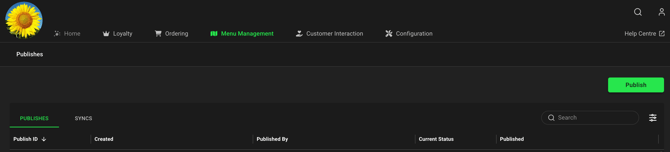
Once the menu sync has taken effect, your items will start appearing and disappearing in the relevant menu.
How items are filtered for customers
When a customer opens the menu:
- Items inside an active daypart are visible and orderable.
- Items outside any active daypart are hidden until their next time window.
- An item that is not assigned to any daypart is treated as always on (subject to the store's overall trading hours).
If a customer adds an item to their cart and the item later moves outside its active daypart before checkout, validation will block the order from completing - they'll be prompted to remove the item.
Editing & Deleting Dayparts
- Editing a daypart - including changes to days, times or assignments - takes effect on aggregators after the next menu publish.
- Deleting a daypart removes all of its item, composite item and submenu mappings (these are cascade-deleted). Affected items revert to always on unless they're still assigned to another daypart.
- All create, update and delete actions are recorded in the PC2 audit log.
Tips
-
Use clear display names. Breakfast Menu is more useful than DP1 if a customer ever sees the label.
-
Group with submenus where you can. Assigning a submenu to a daypart is faster than assigning each item, and easier to maintain when the menu changes.
- Check trading hours alignment. Dayparts run within a store's trading hours. If a store isn't open, the daypart won't make items visible.
- Test before peak. After your first publish, open the customer-facing aggregator app to confirm items appear and disappear at the times you expect.
- Republish after every change. Daypart edits don't reach the aggregators until you publish.
Frequently Asked Questions
Do I have to use Daypart Menus?
No. Daypart Menus are opt-in. Menus that don't have any daypart assignments continue to use the existing Available Times configuration on items and submenus.
Can I use Daypart Menus and the legacy Available Times fields together on the same item?
No. Once a menu has at least one daypart mapping and is mapped to a DoorDash or Uber Eats ordering provider, the legacy availability section is hidden in PC2 for items and submenus inside that menu.
Will Daypart Menus affect Hungry Panda, Grab, Google Food Ordering or Deliveroo?
No. Those aggregators continue to receive the existing per-item availability data unchanged. Daypart data is only added to aggregators that natively support it (DoorDash and Uber Eats).
Can two Dayparts overlap?
A product or submenu can belong to multiple dayparts whose times overlap. The aggregator will show the item if any of its assigned dayparts is active.
Can a Daypart cross midnight?
Yes. Free-text HH:MM input accepts overnight windows (e.g. 22:00–02:00). The export pipeline automatically splits the window into per-day segments so DoorDash and Uber Eats receive valid hours.
Why doesn't my Dayparts menu item appear in PC2?
You need both the dayparts_view and dayparts_update user roles. Ask your administrator to add them in User Management.
Troubleshooting
|
Symptom |
Likely cause |
Fix |
|
Dayparts doesn't appear in the PC2 navigation |
Missing dayparts_view role |
Have an administrator assign the dayparts_view (and dayparts_update) roles in User Management |
|
Cannot create, edit or delete dayparts |
Missing dayparts_update role |
Have an administrator assign dayparts_update |
|
Legacy Available Times still showing on items |
Items are not assinged to a daypart-aware ordering provider, or no daypart mappings exist for that menu yet |
Confirm the menu items are assigned to a DoorDash or Uber Eats ordering provider and that at least one item or submenu in the menu is assigned to a daypart |
|
Items not appearing on DoorDash or Uber Eats during the expected hours |
Daypart times, days or item/submenu assignment incorrect, or the menu hasn't been republished |
Check the daypart's days and time window, confirm the item or its parent submenu is assigned, then republish the menu |
|
Composite variant item missing daypart hours |
Parent composite product isn't assigned to the daypart |
Assign the composite product to the daypart - sized variants inherit from the parent |
|
"End time must be after start time" validation error |
End time is the same as the start time |
Choose an end time that differs from the start time |
|
Daypart changes not reflected on platforms |
Menu has not been republished since the change |
Trigger a new publish from Menu Management → Publishes |
Related Functionality
Article Change Log
| Date | Record of Changes | Author |
| July 2026 | Minor copy updates. | A Crosland |
|
May 2026 |
Update article with 26.04 release changes |
A Crosland |
|
May 2026 |
First publication of this article. |
A Crosland |