
Summary
Digital Stamp Cards unlock next-level customer loyalty and engagement for hospitality businesses. Inspired by the familiar punch card, it offers a seamless, mobile-based experience that drives repeat visits and boosts customer satisfaction.
After downloading the brand's app, customers simply scan their loyalty card to automatically earn virtual stamps with every sale made across all purchasing platforms (POS, web, app and kiosk). These stamps unlock unique rewards, turning loyalty into a dynamic, gamified experience that keeps customers coming back for more.
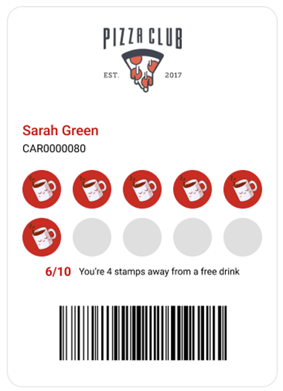
The product overview article for Digital Stamp Cards can be found here.
This article describes the process for accessing, manually adding stamps to member card, and programming promotions that adjust the number of stamps earned or lower the spend threshold for earning stamps.
Accessing Stamp Cards
You can access the Redcat Pay menu in Polygon Central 2 at Loyalty | Stamp Cards.
User Roles
Admin users will require the following user roles to access and interact with Digital Stamp Cards
-
Stamp Card (View)
-
Stamp Card (Edit)
Adding Stamps to a Member Stamp Card
The Stamp Card tab contains the records of each member stamp card, including the current number of stamps, the number of times the member has filled the stamp card, and the number of rewards they have earned.
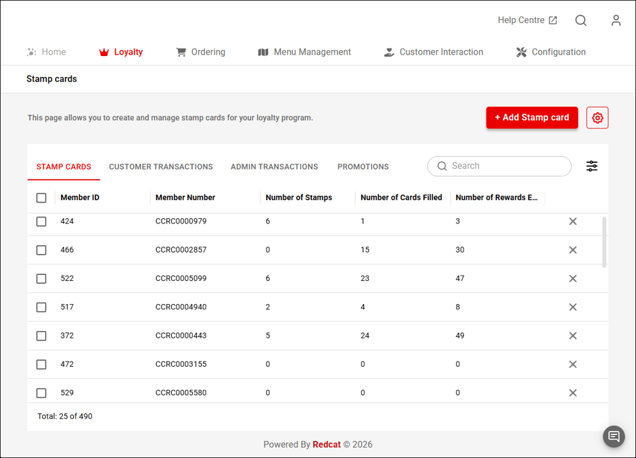
 You can use the more options (ellipsis) button next to each column heading to sort or filter on that column.
 You can use the filter icon to add or remove columns from the list view.
To manually add one or more stamps to a member stamp card:
-
Select the stamp card record from the list.
The card details will include:
- stampcard ID
- member number
- number of stamps (current)
- number of cards filled
- number of rewards earned - In the Manually add stamps section, enter the number of stamps you want to add for this member.
- If the number of stamps added will result in the member being granted a reward you can choose to notify them by placing a tick in the Send email if coupon earned box.
- Use the Update button to record the additional stamps.
Programming Promotions
You can apply promotions to your digital stamp cards if desired. Promotions can be:
-
stamp multplier
-
lower spend threshold
-
both stamp multipler and lower spend threshold
The promotions tab shows the list of previously programmed promotions, including the promoption name, promotion type, start & end dates/times, the creation date and the active status.
You can use the more options (ellipsis) button next to each column heading to sort or filter on that column.
You can use the filter icon to add or remove columns from the list view.
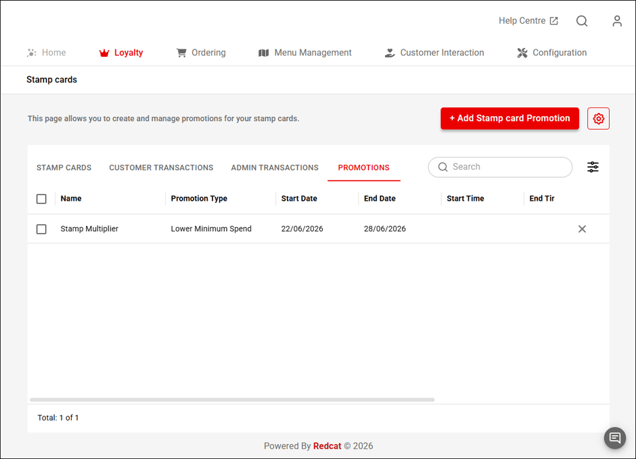
To program a promotion:
- Use the +Add stamp card promotion button
- Enter the promotion name
- Place a tick in the active box (promotions with current date ranges will be active when saved by default
Promotion Details
- Select the relevant promotion type from the drop-down list
- for lower minimum spend, enter the new minimum spend amount
- for stamp multiplier, enter the effective multiplier
- to lower the minimum spend in conjunction with a stamp multiplier, tick the Do you want to add a spend threshold for this promotion? option and enter the new Spend threshold
- Select the relevant channels to which the promotion will apply from the drop-down list
Promotion Scheduling
-
Enter the start and finish dates for the promotion using the calendar pop up in the Promotion Active Dates field
- Optionally, you may also choose a time range for which the promotion will apply in the Promotion Active Times field
- Select the Day of the week that the promotion will apply using the drop-down list. The default is
- Use the Save button to record the promotion
Customer Transactions
The customer transactions tab shows a list of transactions that contributed to a member earning stamps.
These transactions are presented in read only view for information, no adjustments are possible.
You can use the more options (ellipsis) button next to each column heading to sort or filter on that column.
You can use the filter icon to add or remove columns from the list view.
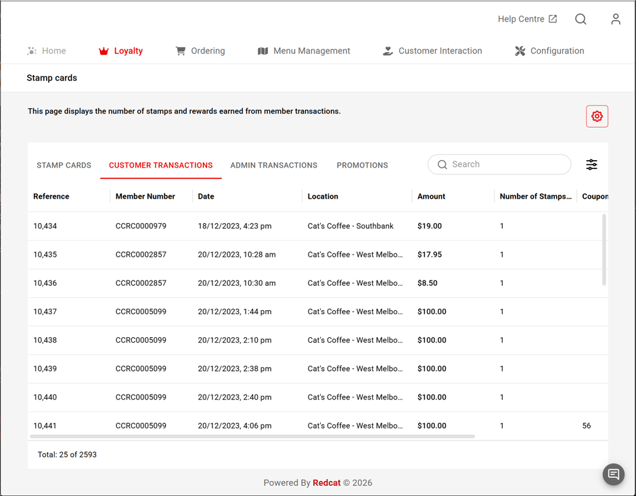
Selecting a transaction line will show all details for that transaction, including:
- stamp card details (stamp card ID and the number of stamps earned in the transction)
- member details (member ID and member number)
- order details (location, date/time, sale type, $ value and sale items)
Admin Transactions
The admin transactions tab shows a list of transactions where an admin user manually added stamps to a member digital stamp card.
These transactions are presented in read only view for information, no adjustments are possible.
You can use the more options (ellipsis) button next to each column heading to sort or filter on that column.
You can use the filter icon to add or remove columns from the list view.
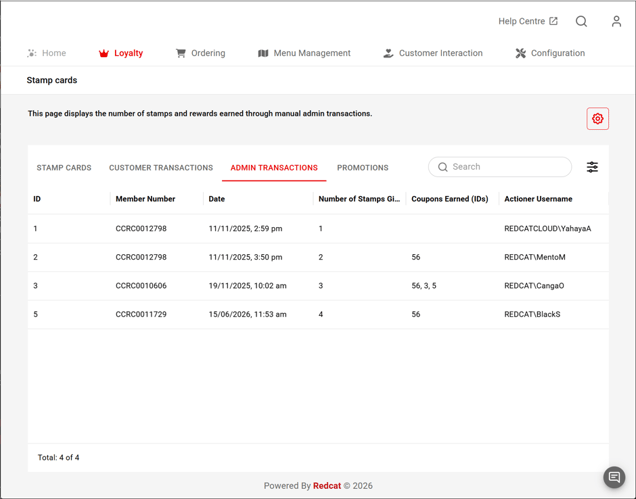
Selecting a transaction line will show all details for the adjustment, including:
- the date/time and admin user details
- the stamp card id and the number of stamps manually added
- the member ID and member number that owns the digital stamp card
Stamp Card Configuration
 You can access the configuration details of your digital stamp card program using the settings icon.
The details here describe the setup of the stamp card as defined in the Digital Stamp Cards - Setup Guide.
You can enable or disable the stamp card campaign. The stamp card will be added or removed from the member card screen the next time they open the app or access the loyalty portal.
You can also adjust:
-
minimum spend
-
stamp card type
-
coupon spot mapping and reward coupons
-
stamp and reward images
- text on the stamp card
- images used for digital stamp cards in apple/google wallets
It is recommended that changes made here are first discussed with Redcat support staff.
Related Articles
You can find more information on Digital Stamp Cards in this article.
Article Change Log
| Date | Record of Changes | Author |
|
June 2026 |
First publication of this article |
S Black |