
Summary
Delivery Zones let you define where each store delivers, what it charges, and which delivery providers and sale types each area applies to - all from a map in Polygon Central 2 (PC2).
You can draw a zone as a simple Circle around the store, or trace a Custom Shape to follow suburbs, rivers or that one road your drivers refuse to cross. Zones can be switched on and off, scheduled for a date range (think Christmas Eve extended radius or Grand Final Day), and ranked by priority so the right fee applies when zones overlap.
Getting Started
- You'll need access to Ordering in PC2.
- Each store needs a valid address and map location - zones are always centred on the store's pin.
- Know which delivery providers and sale types the store uses, so you can target zones correctly.
- Existing zones have already been migrated. If your stores had delivery areas set up before this release, you'll find them here, ready to review.
Accessing Delivery Zones
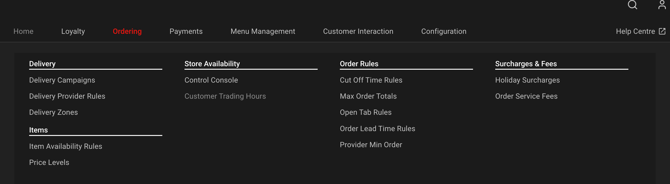
- Go to Ordering → Delivery → Delivery Zones.
- Pick a store from the location list on the left. Each store shows how many zones it has, or Not configured if it has none.
- To narrow the list, use the All locations filter at the top and tick one or more States.
The map shows the selected store's pin and all of its visible zones. You can zoom in and out with the + and - buttons; the map stays centred on the store.
Create a Delivery Zone
- Select the store from the location list.
- Click Add Delivery Zone.
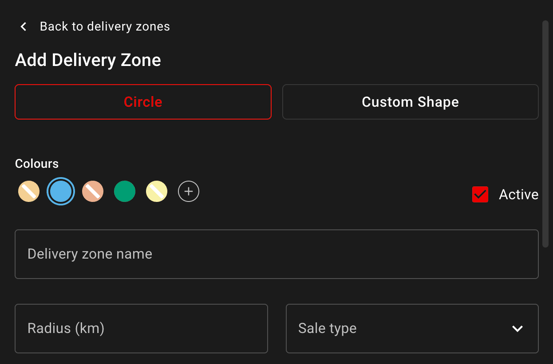
- Choose the zone shape: Circle or Custom Shape (see below).
- Pick a colour, then enter the zone details:
Field
Description
Colours
How the zone appears on the map and in the zone list.
Active
Turns the zone on or off.
Delivery zone name
A name your team will recognise, e.g. "Inner 3km" or "Catering - Uber".
Radius (km)
How far the zone reaches from the store.
Sale type
Which sale type the zone applies to.
Provider
Which delivery providers the zone applies to.
Delivery fee
The fee charged for orders delivered to this zone.
State date / End date
When the zone starts and stops applying.
Start time / End time
The time on the start date the zone begins, and the time on the end date it ends.
Day of week
Limits the zone to selected days.
-
Click Save. The button stays greyed out until all required fields are complete.
Note: Check where the new zone sits in the zone list, and drag it if it needs a different priority.
Circle zones
Enter a Radius (km) and the zone is drawn around the store's pin straight away. Circles suit most stores and are the quickest way to set up a standard delivery area.
Custom shape zones
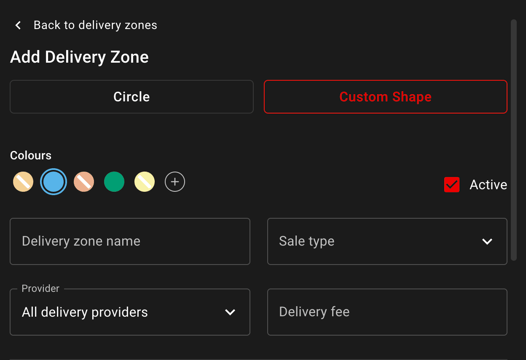
Select Custom Shape, then click on the map to place points around the area you want to cover. The points join up to form the zone's boundary.
Use a custom shape when a circle doesn't fit, for example:
- A coastal store where a third of the circle would be in the ocean (fish rarely tip).
- Excluding a park, freeway or industrial area you don't deliver to.
- Matching an agreed delivery boundary with a provider.
Scheduled Zones
Add dates and times to run a zone for a set period, such as an extended radius over a long weekend.
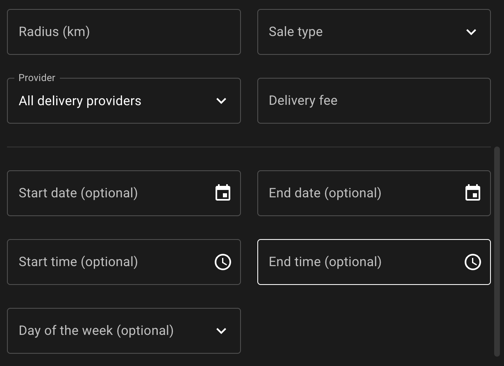
Example: Start date 08/10/2026, Start time 6:00 PM, End date 10/10/2026, End time 12:00 AM runs the zone continuously from 6 PM on 8 October until midnight on 10 October. Once that time passes, the zone is marked Expired.
Important: Start and end times are not a daily window - the start time applies only to the start date, and the end time only to the end date. Use Day of the week to limit the zone to particular days within that range.
Manage Existing Zones
Read the zone list
Each store's zones are listed beside the map. Each row shows the zone's priority number, name, radius (circles only), provider, delivery fee, sale type and any schedule.
|
Status |
What it means |
|
Active |
The zone is on and can be used for orders. |
|
Scheduled |
The zone has dates set and will apply during its scheduled window. |
|
Expired |
The zone's end date and time have passed. It's no longer used. |
|
Inactive |
Active is unticked. The zone is never used, regardless of its schedule. |
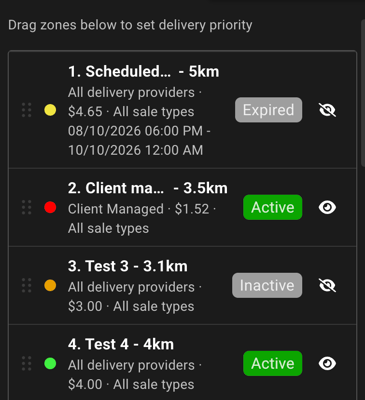
Show or hide zones on the map
Click the eye icon on a zone to show or hide it on the map. This only changes what you see - it doesn't turn the zone on or off for customers.
Expired and inactive zones are hidden by default, so the map only shows what's live.
Set zone priority
When a customer's address falls inside more than one zone, priority decides which zone (and fee) applies. Zone 1 at the top of the list has the highest priority.
- Drag a zone up or down using the handle on the left of its row.
- Click Save to keep the new order, or Reset to undo it.
Example: A store has Inner 3km ($3.00) and Outer 6km ($6.00). Put Inner 3km above Outer 6km so customers close to the store pay $3.00, not $6.00.
Important: Priority changes aren't saved until you click Save. If you try to leave the page or switch stores first, PC2 will warn you about unsaved changes.
Edit a zone
- Click the zone in the zone list.
- Update the fields you need.
- Click Save.
Click Back to delivery zones to return to the list without saving.
Delete a zone
Open the zone and delete it. If you might need the zone again (e.g. a seasonal zone), untick Active instead - it keeps the setup and hides it from the map.
Tips
- Start with circles. Most stores only need two or three circles at different radiuses and fees. Save custom shapes for the awkward ones.
- Name zones by what they do. Catering - Uber 20km tells your team far more than Zone 4.
- Put your most specific zones at the top. A provider-only or scheduled zone should sit above your everyday zones, otherwise the everyday zone wins and the special one never applies.
- Deactivate rather than delete seasonal zones. Untick Active after the event and re-use the zone next year.
- Check the map before you save. If a zone doesn't look right on the map, it won't feel right to your customers either.
Frequently Asked Questions
What happens if a customer's address isn't in any zone?
Delivery won't be offered to that address. Check the zone list for gaps, or add an outer zone to cover the area.
Can zones overlap?
Yes. When they do, the zone with the highest priority (closest to the top of the list) that matches the order's provider, sale type and schedule is used.
Can I set up a zone for one delivery provider only?
Yes. Select that provider in the Provider field. You can select more than one provider; leave it as All delivery providers for zones that apply to everyone.
Does hiding a zone on the map turn it off?
No. The eye icon only changes what you see in PC2. To turn a zone off for customers, untick Active.
What happened to the zones I had before?
They've been carried across and appear in the zone list for each store. Older zones may have been given a colour automatically - you can change it at any time.
Article Change Log
| Date | Record of Change | Author |
| November 2026 | Creation of article to support the launch of the new Delivery Zones feature. | A Crosland |